

Introduction
You've just saved sensitive financial documents to your laptop. If your device is stolen or attacked by ransomware, how confident are you that a thief couldn't access your tax returns, medical records, or business contracts within minutes? Microsoft offers several built-in encryption methods for Windows 11 file encryption, but Microsoft's documentation rarely explains which method suits different users, creating a persistent fog of confusion between EFS (Encrypting File System), BitLocker, and Device Encryption. Most users either pick the wrong tool or avoid encryption entirely due to perceived complexity, leaving their most critical data exposed.
This guide demystifies every file and folder encryption method available in Windows 11, explaining exactly what each does, who it's designed for, and the real-world limitations Microsoft doesn't advertise. You'll learn step-by-step processes for native tools, understand why 73% of windows home users encounter encryption failures with built-in options, and discover what professional-grade file encryption software actually looks like for everyday protection.
Before we dive into the mechanics, it's worth mentioning that for users seeking a dedicated, zero-hassle solution, dedicated encryption tools for Windows like EncryptPro exist. It bypasses the complexity of native systems by offering military-grade AES-256 encryption through a simple right-click, turning a complex security task into a seamless habit.
Let's start by understanding the three built-in Windows 11 file encryption options—and why knowing their differences matters more than you think.
Understanding Windows 11's Native Encryption Landscape
Choosing a file encryption tool for Windows shouldn’t feel like navigating a labyrinth with hidden traps, yet that’s often the experience with Windows 11 file encryption. Microsoft provides a fragmented, three-tiered system: EFS (Encrypting File System), Device Encryption, and BitLocker. Each serves a distinct purpose, targets different users, and—crucially—carries its own set of complex requirements and non-obvious risks.
Microsoft Encryption Solutions
A comparative analysis of Windows Encrypting File System (EFS), Device Encryption, and BitLocker
| Windows Encrypting File System (EFS) | Device Encryption | BitLocker |
|---|---|---|
Core Purpose
|
Core Purpose
|
Core Purpose
|
Availability
|
Availability
|
Availability
|
Key Strengths
|
Key Strengths
|
Key Strengths
|
Key Limitations
|
Key Limitations
|
Key Limitations
|
Best For
|
Best For
|
Best For
|
|
Security Summary
Weakest of the three. Effective for basic, user-level privacy but easily bypassed and not for high-security needs.
|
Security Summary
"BitLocker Lite." Provides strong, hardware-rooted protection for the system drive with minimal user effort.
|
Security Summary
Most robust and flexible. The definitive solution for full-disk encryption on supported Windows editions.
|
The immediate friction point is access. BitLocker's power is gated behind a $99 upgrade from Windows Home to Pro for most users. If you're on Home edition, your path to full-disk encryption is Device Encryption, which itself has prerequisites: a modern device with a TPM 2.0 chip and a mandatory sign-in with a Microsoft account.
The Fundamental Limitation: Protecting Data-at-Rest, Not Data-in-Use
This is the most significant conceptual gap with Windows 11 file encryption. It is primarily designed as data-at-rest protection. It's excellent at making a stolen, powered-off laptop a useless brick to a thief. BitLocker and Device Encryption are virtually meaningless once you're logged into Windows. Your files are fully accessible to any process running under your account—be it a piece of malware, a remote access tool, or someone sitting at your unlocked computer.
Similarly, an EFS-encrypted file is transparently decrypted for you when accessed. If ransomware executes during your session, it can encrypt that file just like any other. The native tools were not designed to maintain a protective barrier while you work.
Encrypting Files with EFS (Encrypting File System)
Let's move from theory to practice. If you need to encrypt specific files, not your whole drive, EFS is Windows 11's built-in answer.
What EFS Actually Does (And Doesn't Do)
EFS is a file-system level encryption feature available on NTFS-formatted drives. It encrypts individual files and folders by scrambling their contents with a unique encryption key tied to a digital certificate. This certificate is, in turn, tied to your specific Windows user account. The encryption and decryption happen transparently in the background for you. No other user account on the same PC can read these files, providing a layer of privacy on shared machines.
Crucial Limitations to Understand First:
- Drive Format: It only works on NTFS drives. Copy an EFS-encrypted file to a FAT32 or exFAT USB drive, and it decrypts automatically.
- Sharing is Broken: It's terrible for collaboration. You cannot easily grant access to another user on the same PC without exporting and importing certificates—a complex and risky process.
- Cloud & Email Vulnerability: Uploading an EFS-encrypted file to OneDrive, Google Drive, or attaching it to an email will strip the encryption, sending the raw data. For a method that keeps encryption intact and avoids cloud dependencies, see our guide on how to encrypt files on Windows without cloud storage.
Step-by-Step Encryption Process
Step 1: Encrypt a File or Folder
- Right-click the file or folder you want to protect.
- Select Properties.
- Click the Advanced button in the General tab.
- Check the box for "Encrypt contents to secure data."
- Click OK, then Apply.
- A dialog box will appear. Choose:
- "Encrypt the file and its parent folder" (recommended for single files to avoid orphaned encrypted temp files).
- "Encrypt the file only."
Windows will now encrypt the item. The first time you ever use EFS on your account, it will generate your personal encryption certificate behind the scenes. Microsoft
The Critical, Non-Optional Backup Step
This is the most important part of using EFS. Shortly after first use, a notification icon (🔒) may appear in your system tray urging you to back up your certificate. DO NOT DISMISS THIS.
Back Up Your EFS Certificate
Before encrypting files with EFS, you must back up your encryption certificate. Without this backup, system failures or reinstalls will permanently lock you out of your encrypted files.
For complete step-by-step instructions on how to back up your EFS certificate using the Certificate Export Wizard, refer to Microsoft's official EFS certificate backup guide.
The Professional Verdict on EFS
For IT administrators, EFS is a tool that requires careful Group Policy management to be viable in an organization, making it overkill for individuals or small teams. For the average user, its dependency on a fragile certificate chain, its incompatibility with common file-sharing actions, and the catastrophic risk of permanent data loss make it a high-maintenance, high-risk method for file encryption software. Not to mention the data-in-use risk and no password protection makes this feature useless for many with no real benefit which forces them to look for a practical, robust and user-centric encryption tool for Windows.
The Modern Alternative – File-Level Encryption for Daily Use
EFS is a fragile, complex system. What you need for day-to-day security is a sharp, precise tool: file-level encryption that works while you work.
This approach protects individual files and folders both at rest on your disk and during active use, without the certificate labyrinths of Windows 11 file encryption or the all-or-nothing scope of BitLocker. For a curated list of tools that excel at this, see our roundup of the best encryption software for Windows 10 & 11 in 2025.
The Workflow Integration Challenge (And Solution)
The fatal flaw of most traditional file encryption tools—like creating encrypted archives with 7-Zip—is the manual cycle: decrypt → edit → save → re-encrypt. File-based tools like AxCrypt attempt to solve this workflow problem but still rely on session-based encryption models, which is why many users compare them directly when choosing between modern options (AxCrypt vs EncryptPro comparison). It's a workflow users abandon within days because it's antithetical to how we actually use files.
Modern encryption must be invisible until you need it. It should work like this:
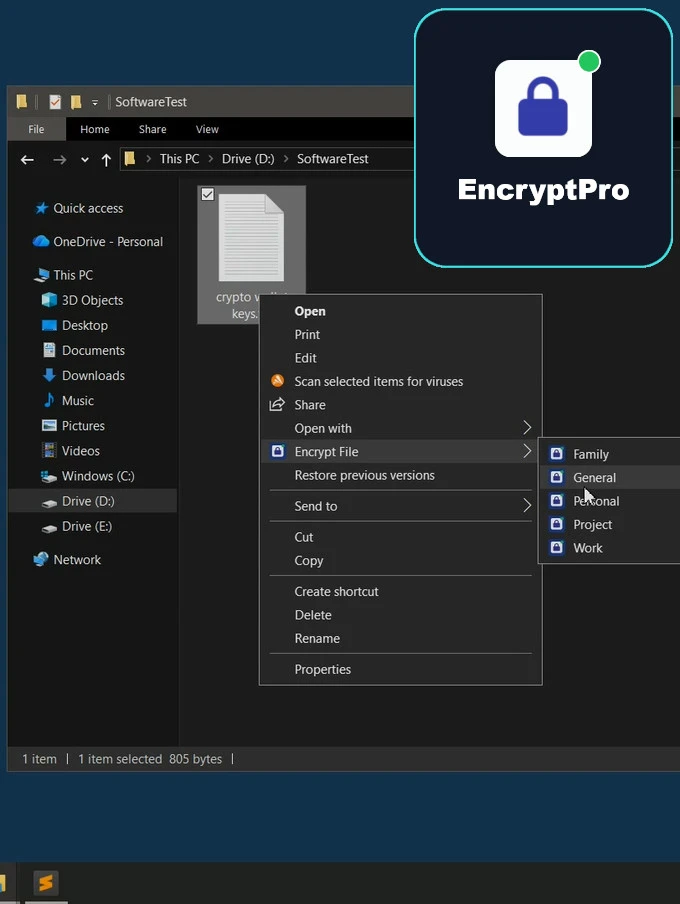
- Right-click a sensitive file in File Explorer. Click "Encrypt."
- To work on it, double-click it. It opens in Word, Excel, or your PDF viewer.
- You edit and hit save. It automatically re-encrypts.
- You close the file. It's secure again.
No containers to mount. No manual decryption steps. No extra copies floating around. This is the seamless integration required for security to become a habit, not a hassle.
EncryptPro: Encryption Designed for Actual Use
This is where a dedicated AES encryption software like EncryptPro is engineered to fill the gap left by native tools. It's built on a core principle: security should not compromise convenience.
Here’s how it solves the daily-use problem:
- Right-Click Simplicity: It integrates directly into Windows. Find a file, right-click, choose "Encrypt with EncryptPro." The file is instantly secured with military-grade AES-256 encryption.
- On-The-Fly, Invisible Access: This is the key differentiator. Double-click an encrypted file. It temporarily decrypts in your system's RAM, opens in its native application, and re-encrypts the moment you save and close.
- Smart Group Management: Instead of unlocking files one by one, you can create groups (e.g., "Work," "Personal," "Taxes"). Unlock the "Work" group with one password, and all files in that category are accessible. Lock the entire group with a single click when you're done. It’s efficient, organized security.
- Zero-Knowledge, Local-First Architecture: Unlike Device Encryption forcing your key to the cloud, EncryptPro operates on a zero-knowledge model. Your encryption keys are generated and stored only on your device. Nothing sensitive is transmitted. Your data stays yours, locally.
- The "No Lockout" Safety Net: Addressing the terrifying risk of EFS certificate loss, EncryptPro includes a Viewer Only Mode which provides guaranteed access to your files under all circumstances.
Getting Started: A Realistic Path
The barrier to entry is intentionally low. EncryptPro offers a completely Free Forever version with unlimited file encryption, perfect for testing the workflow and securing individual files like documents and text files. The paid version (from $5/month) unlocks folder-level encryption and full on-the-fly access for all file types (images, videos, etc.).
Setup is measured in minutes, not complexity: Download, install, set a master password, and the right-click menu is ready. You can secure your first files faster than it takes to back up your EFS certificate and decipher Microsoft's export wizard.
FAQs
Q1: Can I encrypt files on Windows 11 Home edition without upgrading to Pro?
Q2: What happens to my encrypted files if I reinstall Windows or my hard drive fails?
EFS-encrypted files become permanently inaccessible unless you backed up your encryption certificate before the system failure. BitLocker-encrypted drives can be recovered using the 48-digit recovery key saved to your Microsoft account or printed during setup. Always maintain offline backups of encryption certificates and recovery keys—cloud storage alone creates single points of failure during account lockouts or service outages.
Q3: Does encrypting files slow down my computer or make files take longer to open?
Full-drive encryption (BitLocker/Device Encryption) causes less than 3% performance impact on modern SSDs. EFS adds negligible overhead since only encrypted files require decryption. File-level encryption tools with on-the-fly access (like EncryptPro) decrypt files in RAM during opening—users typically notice no speed difference versus unencrypted files when opening Word documents or Excel spreadsheets on systems with 8GB+ RAM.
Q4. If I encrypt a file with EFS and email it as an attachment, does it stay encrypted?
No. EFS automatically decrypts files when moved outside NTFS volumes, including email attachments, cloud uploads, and USB drives formatted as FAT32. The recipient receives an unencrypted file. To maintain encryption during transfer, use file-level encryption tools that keep files encrypted in all locations, or manually compress files into password-protected archives before sending (though this requires extra steps).