

Cloud Storage Security Risks
You've probably heard the mantra: "Just save it to the cloud." It's convenient, accessible from anywhere, and feels secure. Services like Google Drive, Dropbox, and OneDrive have built their empires on that promise. But here's the uncomfortable truth: when you store sensitive files in the cloud instead of using local file encryption on Windows, you're handing them to a third party—and that introduces serious risks you can't fully control.
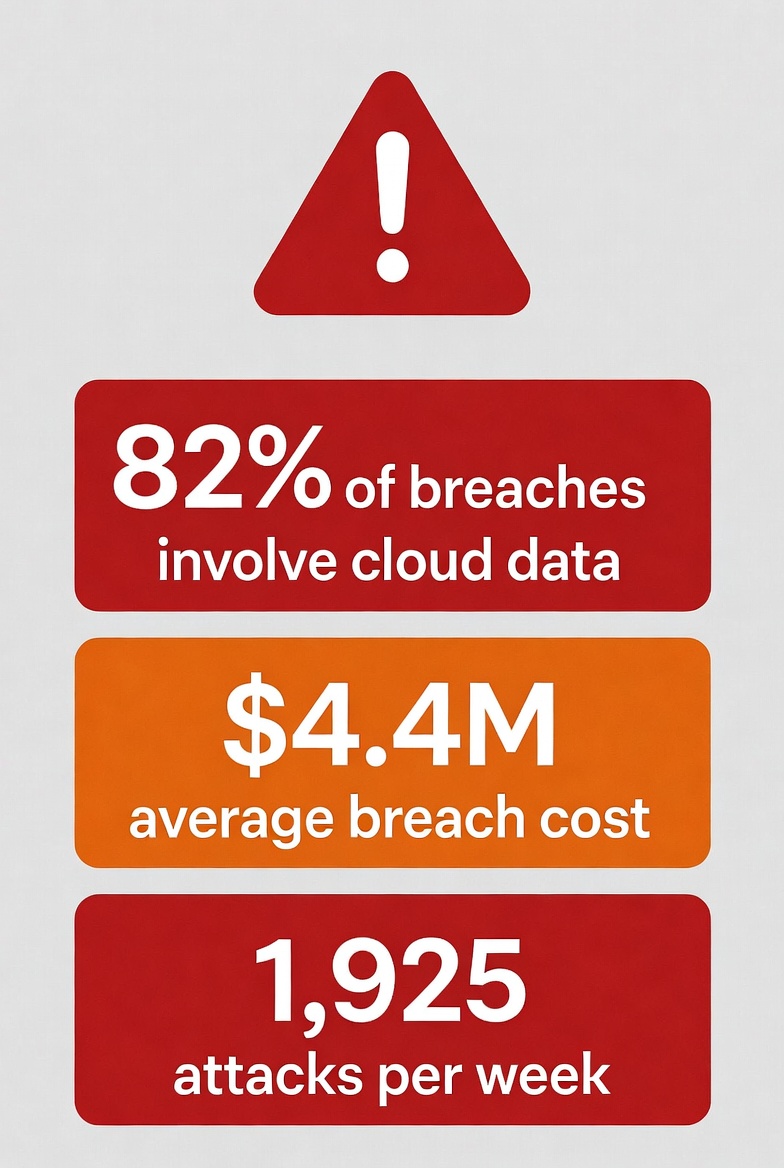
The numbers are brutal. IBM’s Cost of a Data Breach Report 2025 found the global average cost of a data breach is $4.4 million.
Cloud breaches are now the norm:
- 82% of data breaches involve cloud-stored data
- 83% of organizations experienced at least one cloud security incident in the past year
- Companies face an average of 1,925 cloud-targeted attacks per week in 2025
Real-world proof: The February 2024 Change Healthcare ransomware attack exposed the protected health information of ~190 million Americans—more than half the U.S. population—because a remote access portal lacked multi-factor authentication HIPAA Journal.
These aren't rare edge cases. They're systemic failures that happen when your files live on someone else's servers. Misconfigurations, stolen credentials, supply-chain attacks, insider access, and government demands all become your problem—even if you did everything perfectly on your end.
That's why local-only encryption is the only real fix: it cuts out every third party, keeps your keys on your device, and ensures no one—not hackers, not governments, not rogue admins—can touch your data without physical access to you.
Why Local File Encryption on Windows Gives You Zero Dependency and Total Control
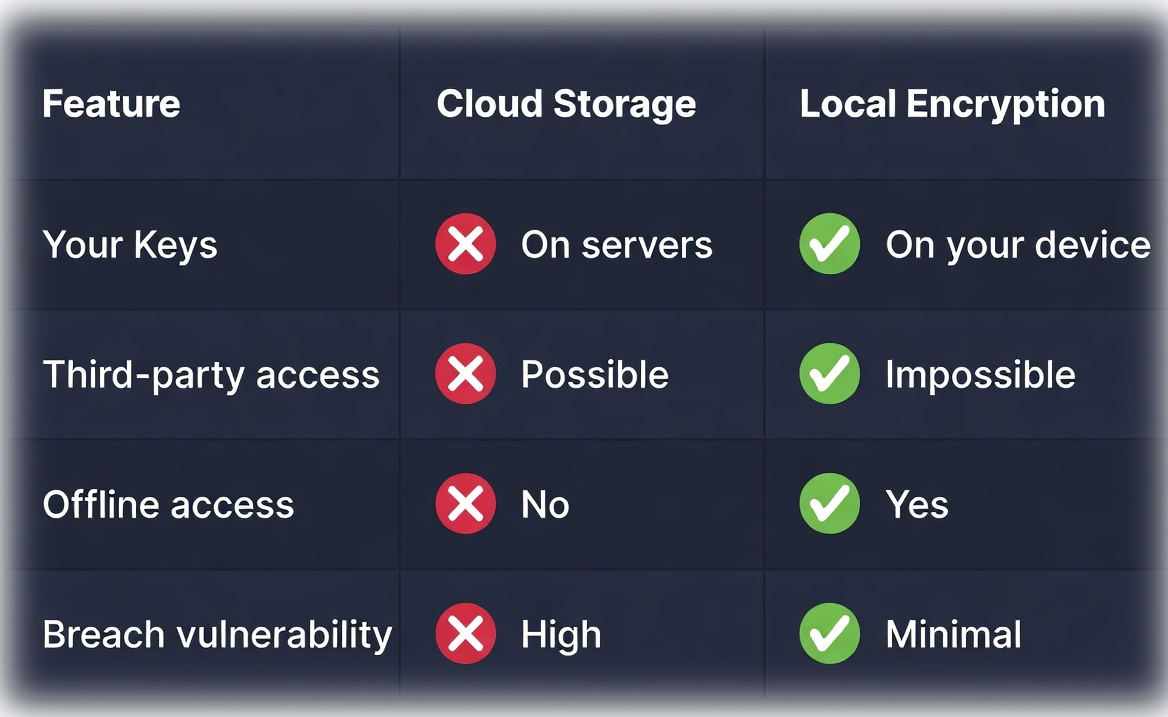
When you encrypt files on Windows locally using dedicated encryption software, the cloud nightmare ends before it begins. No data ever leaves your drive unencrypted. No third-party servers, no shared infrastructure, no external keys—just you and your device.
Here's what local-only encryption actually gives you:
Zero Cloud Dependency
Your files stay on your SSD or external drive. No syncing means no exposure to server breaches, misconfigurations, or supply-chain attacks. If the internet goes down, your encrypted files are still accessible—offline, on-demand.
Complete Control Over Your Keys
You generate and manage the encryption keys. Unlike cloud providers who hold server-side keys (even in "zero-knowledge" setups), only you can decrypt your data.No one else can be compelled to hand it over.
No Insider or Government Backdoors
Law enforcement can't send a subpoena to a server farm—because there is no server. Physical access to your device is required, and that triggers your legal rights (warrant, notice, defense). Your data isn't silently surrendered via email.
True Peace of Mind for Sensitive Use Cases
Crypto wallet backups, tax documents, medical records, or trade secrets—encrypted locally means encrypted forever. Even if your laptop is stolen, strong file-level encryption (AES-256) renders the data useless without your password.
Works Seamlessly with Cloud If You Choose
Need backup? Encrypt first, upload the ciphertext. The cloud becomes dumb storage—Dropbox or OneDrive never sees plaintext. You retain full control, and the provider has nothing to leak.
The challenge most Windows users face isn't whether to encrypt files—it's finding Windows encryption software that's actually usable. Traditional solutions force impossible choices between security and convenience, which is why many people simply avoid encryption altogether.
This isn't just security—it's sovereignty. Local-only encryption puts you back in the driver's seat, eliminating every external point of failure. And the best part? It's simple, fast, and doesn't require a Pro license or container management.
That's the foundation of a truly private workflow—and exactly what tools like EncryptPro deliver: file-level encryption, on-the-fly access with zero complexity.
Comparing Local Encryption Methods on Windows
When you decide to take control with local encryption, you'll typically encounter three main approaches with Windows encryption software: built-in tools like BitLocker, open-source powerhouses like VeraCrypt, and dedicated file-level encryption solutions. Understanding the trade-offs is key to finding a solution that doesn't sacrifice your workflow for security.
BitLocker: Full Disk Encryption Limitations
BitLocker is a solid starting point for full-disk encryption, especially as it's built directly into Windows. However, its major limitation is that it's only available on Windows Pro, Enterprise, or Education editions, leaving Windows Home users without access. Furthermore, as noted in a Spiceworks community survey on encryption adoption, its "all-or-nothing" approach means once your system is booted, your entire drive is effectively decrypted, offering no granular protection for individual files against malware or unauthorized user access during an active session.
For users specifically wanting to encrypt files on Windows with granular control rather than full-disk encryption, BitLocker's limitations become clear. You can't selectively protect sensitive documents while leaving everyday files accessible, and you have no protection against threats during active use.
VeraCrypt: Powerful but Punishing for Regular Users
For those seeking maximum configurability, VeraCrypt is a respected, free, and open-source tool capable of creating encrypted containers or encrypting entire drives. Its power, however, comes with a significant complexity cost. A 2023 study by the University of Maryland on usable security found that non-technical users are often overwhelmed by tasks like determining the correct container type, managing volume sizes, and remembering to manually "dismount" drives. This steep learning curve and manual process frequently leads to what experts call "security abandonment," where users stop using the tool because it disrupts their natural workflow too much.
Archive Tools: Security Theater at Best
File-level encryption tools, including various archive utilities (like 7-Zip) and modern dedicated software, aim to solve this by letting you encrypt individual files and folders directly. While more flexible, traditional archive tools create a cumbersome workflow: you must decrypt (extract) a file to edit it, then re-encrypt (re-zip) it afterward. This constant packing and unpacking is a documented pain point that, according to a Norton Cyber Safety Insights Report, causes nearly 70% of people to skip encryption for files they need to access or edit regularly, defeating the purpose entirely.
The Ideal Windows File Encryption Workflow: Security That Actually Gets Used
So, what does the perfect middle ground look like? An ideal local file encryption solution must eliminate the friction that causes "security abandonment" while providing protection that is both comprehensive and intelligent. It should deliver:
File-Level Precision:
The ability to encrypt individual files and folders wherever they naturally reside on your system, without moving them into isolated containers.
On-the-Fly Access:
The capability to open, edit, and save encrypted files directly in their native applications (like Word, Excel, or Photoshop) without manual decryption and re-encryption steps.
Data-in-Use Security:
Crucially, this goes beyond just protecting "data-at-rest" (files when closed). Unlike full-disk encryption like BitLocker, which leaves files vulnerable during an active session, the ideal solution maintains a protective barrier even while you work, only decrypting data on-demand in memory.
Minimal Workflow Interruption:
Security that integrates into your existing habits through right-click menus and intelligent grouping, rather than forcing you into a new, complex system.
This combination ensures that file encryption is no longer a separate, tedious task, but a seamless part of how you interact with your sensitive data every day.
Introducing EncryptPro: Windows Encryption Software Done Right
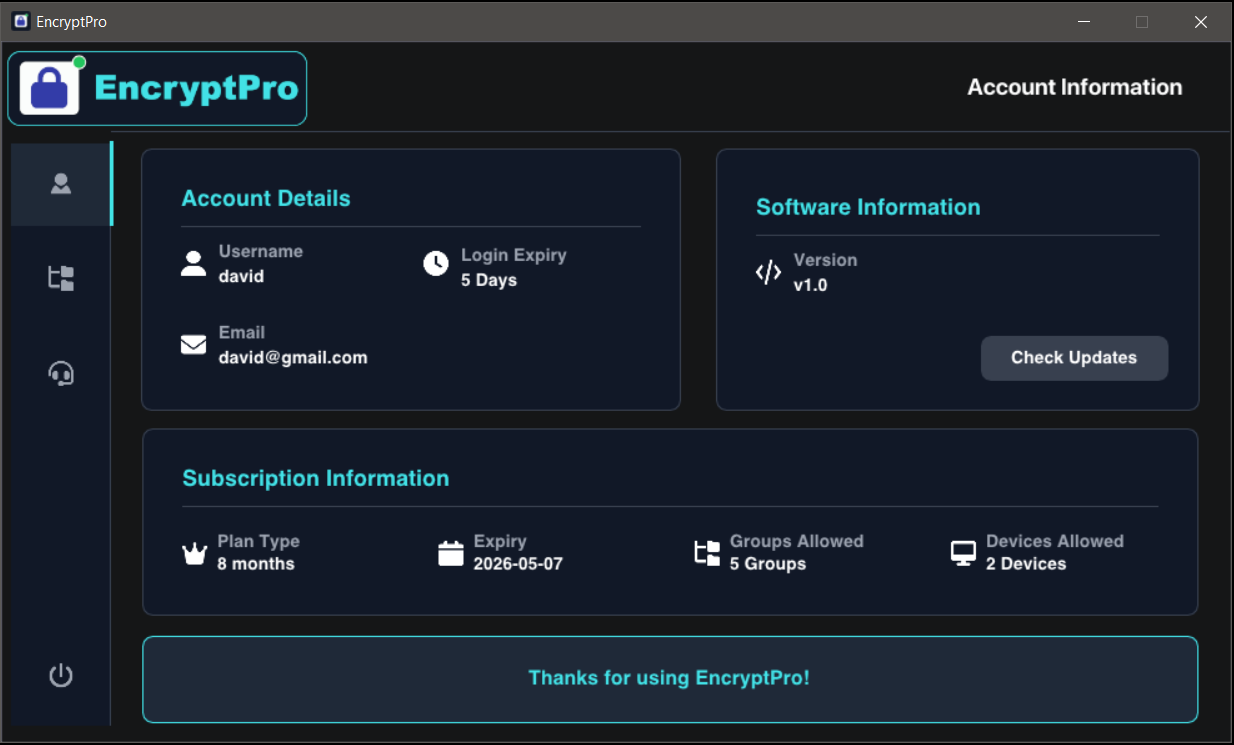
This vision of effortless, powerful file encryption is exactly why we built EncryptPro. It is designed from the ground up as Windows encryption software for privacy-conscious individuals who want to encrypt files on Windows without complexity, providing military-grade security with effortless usability. Here's how it translates the ideal workflow into reality:
Step 1: Encrypt Anything, Instantly
Forget containers and virtual drives. With EncryptPro, you secure your files right where they are. Simply right-click on any file or folder in File Explorer, select "Encrypt" from the context menu, and choose a group. The file is instantly protected with AES-256 encryption, yet remains in its original location.
Step 2: Work Naturally with Encrypted Files—On-the-Fly Access
This is where EncryptPro fundamentally changes the game. Need to edit an encrypted document? Just double-click it. It will open directly in Microsoft Word (or any other native application). Make your changes, hit 'Save,' and EncryptPro automatically handles the re-encryption in the background. This provides true data-in-use security—your file is only decrypted in memory for the application to use and is immediately re-secured upon saving, a layer of active protection that full-disk encryption lacks.
Step 3: Organize Access with Smart Groups
To eliminate constant password prompts, EncryptPro lets you create up to five custom groups (e.g., "Work," "Personal," "Crypto Wallets"). Unlock your "Work" group once at the start of your session, and you can freely access all files within it. When you're done, a single click locks the entire group. This balances unparalleled ease of use with granular security, ensuring that while you're working on one project, files in other groups remain firmly locked down.
Step 4: Guaranteed Access, No Matter What
EncryptPro is built on a true zero-knowledge architecture—your keys never leave your device. We've also engineered fail-safes to ensure you are never locked out of your data. Using the Viewer Only Mode, you can access your encrypted files on any device, even without an active internet connection or software subscription. Your data remains yours, permanently accessible.
EncryptPro turns file encryption from a chore into a habit. No Pro license. No tech degree. No workflow sacrifice.
Just right-click → secure → double-click → work → save → done.
For crypto users, freelancers, or anyone tired of vault jail—EncryptPro is the local-only, on-the-fly solution that finally makes strong Windows file encryption actually usable.
EncryptPro: File Encryption Software for Windows Tutorial
The Best of Both Worlds: Local Encryption + Cloud Backup
Here's the reality: cloud storage isn't the enemy. The convenience of multi-device access, automatic backups, and hardware failure protection are genuinely valuable. The problem is uploading sensitive, unencrypted data to someone else's servers.
The solution is simple: Use local file encryption first, then upload the encrypted files to the cloud.
This approach neutralizes every cloud vulnerability we discussed. Data breach at your provider? Your encrypted files are worthless without your local keys. Misconfigured permissions? Doesn't matter—the files are already scrambled. Government subpoena? Rogue administrator? They get encrypted gibberish. You're using cloud storage purely as encrypted off-site backup—like a safety deposit box where even the bank can't see what's inside.
The workflow is straightforward: Encrypt your files locally, upload them to your preferred cloud service (Google Drive, Dropbox, OneDrive), work on files locally with on-the-fly access, then sync the updated encrypted files back to the cloud. Install your encryption software on multiple devices, and your encrypted files sync through the cloud—but only devices with your credentials can decrypt them.
Lost your laptop? The thief gets useless encrypted files. Cloud account compromised? Same result. You're leveraging cloud convenience while maintaining local control.
Your Data Deserves Better
Data security isn't about paranoia—it's about taking responsibility for your digital life. Whether you're protecting business documents, financial records, or cryptocurrency wallets, you deserve tools that actually work without feeling like a burden.
Local file encryption puts control back in your hands. It eliminates the anxiety of trusting cloud providers with your sensitive data and removes the vulnerability of centralized systems that can be breached at scale. Your encryption keys—and therefore your data—remain exclusively yours.
Security only works when it's actually used. If a tool is too complicated or disruptive, people abandon it—leaving data completely exposed. Whatever Windows encryption software you choose—EncryptPro for seamless file-level encryption, VeraCrypt for advanced needs, or BitLocker if you have Windows Pro—the important thing is that you're taking control.
Every encrypted file is one less vulnerability. Every locally stored key is one less potential compromise. Your sensitive data deserves the uncompromising protection of local encryption, where you control the keys, you control access, and you never have to wonder whether your privacy is being respected.
Ready to Get Started?
If you're looking for practical security without complexity, EncryptPro offers a Free Forever version with unlimited encryption, on-click security, and seamless file access—no subscription required, no expiration, just solid protection for your personal files.
Your data deserves protection that actually works. Grab Encrypt Pro Today and rest easy knowing your digital life is secure, accessible, and entirely under your control.