

Introduction
You password-protected that Excel file with your client data. Your colleague needs it urgently, but it won’t open on his machine. Now you’re frantically trying different passwords, wondering if you used the one with the exclamation mark or the dollar sign—and whether this file will ever open again. What started as a simple act of password protection has turned into a productivity-killing guessing game, with real business consequences hanging in the balance.
This is how most people encounter file password protection: not through careful planning, but in moments of panic. A shared computer at home. A sensitive document sent to the wrong inbox. A data breach headline that hits a little too close. The response is almost always the same—enable Office’s built-in lock, use Adobe password protect for a PDF, zip the file, or grab a quick password protection app from an online search. These options feel like responsible security choices—until they break workflows, create compatibility issues, or quietly expose your data in ways you never expected.
This guide reveals why common password protection software often fails when it matters most, and why securing files one by one creates more risk, not less. You’ll learn what real file protection actually means, what separates the best password protector from temporary fixes, and how to protect your data without disrupting how you work.
Let’s start by examining why the tools you’re probably already using are setting you up for failure.
Why “Password-Protected” Still Isn’t Secure
The term file password protection sounds definitive—but in practice, it rarely delivers real security. Tools like Word, Excel, and PDF readers rely on passwords as access controls, not as independent security systems.
See historical vulnerabilities in Office password protection for details on RC4 weaknesses and AES improvements. That distinction matters more than most users realize.
Archive tools such as ZIP or RAR add another layer of risk. Many still ship with known weaknesses in ZIP encryption or outdated encryption defaults, making them far easier to crack than people assume.
Because the moment a password-protected file is opened, protection effectively disappears. At that point, the data is readable, editable, and exposed—no matter how strong the password was. That’s why modern threats don’t bother “breaking” passwords. They wait for files to be opened.
In short, traditional password protection software focuses on keeping files closed—not on keeping data secure when it actually matters.
The Hidden Dangers Lurking in Your “Protected” Files
Modern password protection mechanisms often create a false sense of security.
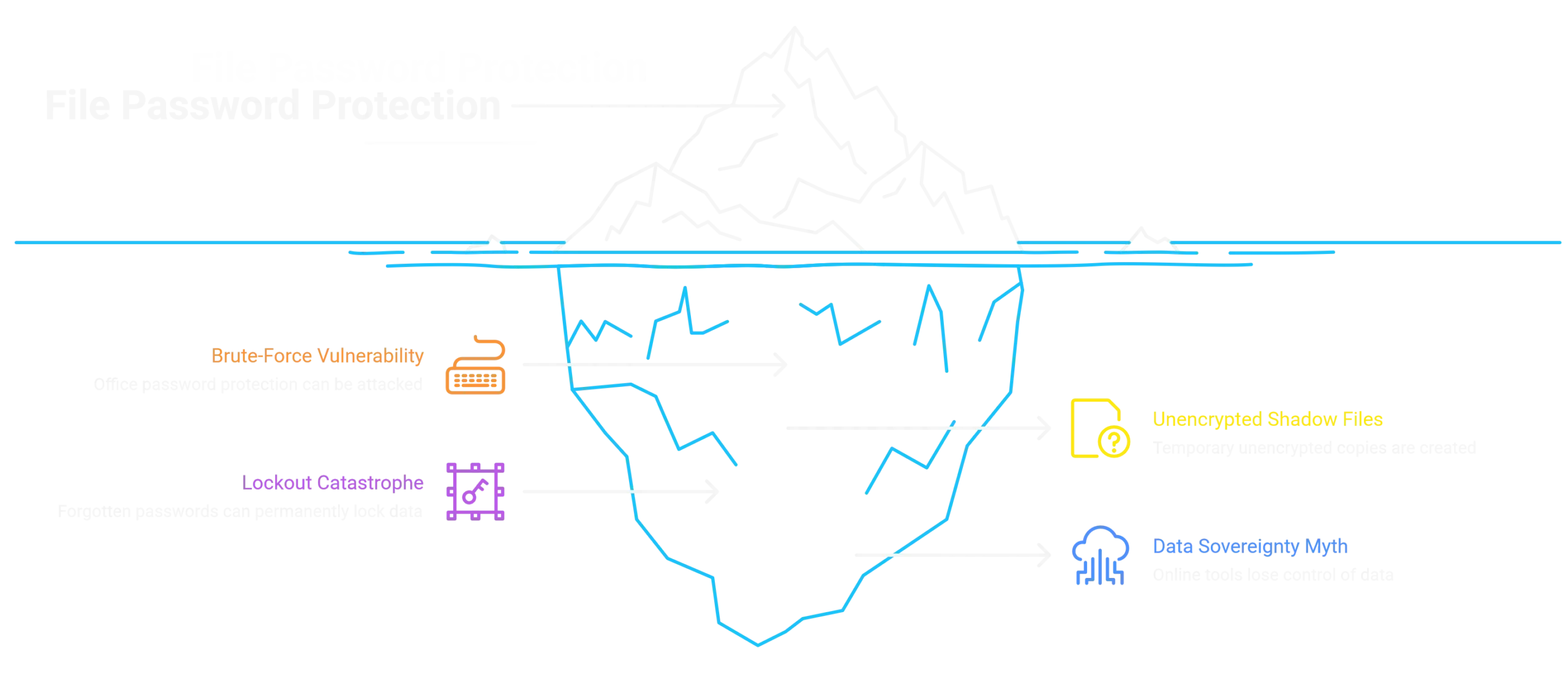
Brute-Force Vulnerability Window
The Unencrypted Shadow Files Problem
The Lockout Catastrophe
The Data Sovereignty Myth
Together, these risks reveal a simple truth: most password-based solutions protect appearances, not data.
Why Password Management Becomes Your Biggest Security Weakness
When file password protection scales beyond one or two documents, the real risk isn't encryption—it's password management itself. Here's how common password protection software quietly turns into a liability:
Password Proliferation Nightmare
Application Dependency Trap
Update-Induced Access Failures
Team Collaboration Deadlock
Bottom line: the more files you protect individually, the more fragile your security becomes. Passwords weren't designed to scale—and they fail precisely when reliability matters most.
Non-Negotiable Pillars of Real File Protection
If file password protection is going to work in the real world, it has to move beyond one-off locks and fragile passwords. Effective protection follows a few non-negotiable principles:
Centralized Security Architecture
Zero-Knowledge Local Encryption
Seamless Workflow Integration
Group-Based Access Control
Guaranteed Access Fail-Safe
This is the standard modern file security must meet—and where outdated tools quietly fall short.
Introducing EncryptPro: Centralized Security Without the Complexity

Right-Click Simplicity
Right-click any file or folder—anywhere on your system—and encrypt it instantly with AES-256. No moving files into containers, no configuration screens, no disruption.
Guaranteed Long-Term Access
Complete Protection Package
Current Limitation Note
Ready to secure your data?
Start protecting your files in seconds.
FAQs
Q1: What’s the difference between file encryption and password protection?
Password protection usually controls access to a file, while encryption protects the file’s actual contents. In many tools, a password simply blocks opening the file, but once it’s open, the data is fully exposed. True file encryption secures the data at all times—at rest and during use—using strong algorithms like AES-256, making it vastly more secure than basic password protection.
Q2: How is EncryptPro different from just password-protecting files in Microsoft Office?
Office password protection uses weaker encryption algorithms vulnerable to brute-force attacks (passwords crackable in hours), only works within Office applications, and provides zero protection when files are open for editing. EncryptPro uses military-grade AES-256 encryption, works across ALL file types (PDFs, images, videos, etc.), and maintains protection even during active editing through on-the-fly access—files decrypt in memory only, never creating vulnerable unencrypted copies.
Q3: If the encryption is local and zero-knowledge, what happens if I forget my master password?
Because EncryptPro has zero access to your keys or data, we cannot recover a lost master password. This is the cornerstone of true privacy. We provide clear warnings during setup and encourage storing it securely. However, if you forget a group password, you can reset it using your master password.
Q4: Can I access my encrypted files on a computer without EncryptPro installed?
For full access, the software needs to be installed. However, a key feature is Any Device Data Access. On any Windows device (even without a license), you can install EncryptPro and use Viewer Only Mode with your master password to access all your files. Your license is for encrypting, your master password is for accessing.