

If you’re looking for Windows file encryption software in 2026, you’re investing in your personal data sovereignty—the difference between owning your information and merely hoping it stays private.
Most people start their search comparing features: AES strength, interface, pricing tiers. But the real differentiators today run deeper:
long-term cost of ownership, sustainability, failure scenarios, and how a tool behaves when things go wrong.
And that’s where the market quietly splits.
Some tools are “free,” but eat away your time with complex workflows. Others encrypt entire drives even when you only need file-level control. And a few—like EncryptPro—have begun approaching the problem as a strategic balance of security, convenience, and future-proof access.
This guide strips down the noise. You’ll see how the major categories of encryption tools compare, where hidden costs sit, what risks each solves (and ignores), and how to choose the system that protects your data without locking you into someone else’s ecosystem.
Why Encryption on Windows Still Matters in 2026
Windows 10 and 11 both offer built-in options such as EFS (Encrypting File System) and BitLocker, and they work well and provide protection against only the physical attacks.
Microsoft’s official support documentation confirms that Windows’ built-in EFS lets users encrypt individual files or folders via the ‘Encrypt contents to secure data’ File Explorer option—though it’s only available on Professional editions and above.[Microsoft Support]. Forensic analyses further explain that EFS relies on user certificates, which means encrypted data becomes unreadable the moment the user profile is corrupted, migrated incorrectly, or deleted.
In other words:
Great when everything works.
Catastrophic when it doesn’t.
Add to this the rise of device theft, ransomware, and hybrid-work data exposure, and encryption stops being optional. It becomes a practical insurance policy.
The 4 Types of Windows File Encryption Software (and Their Hidden Costs)
Below is a clear-cut breakdown of the ecosystem
1. Full-Drive Encryption (BitLocker, VeraCrypt)
These tools secure everything on the drive—ideal for laptops at risk of physical theft.
Strengths
- Strong protection when devices are powered off
- Native to Windows Pro (BitLocker)
- Enterprise-grade key management
Weaknesses
- All-or-nothing approach
- Everything is unencrypted while you’re logged in
- Overkill for users needing small amount of files protected
- Limited usability for shared folders or cloud syncing
Hidden Cost
- High.
Because full-drive encryption foes not provide windows file encryption when they are in use, you may still need file-level encryption software later. Data lost risk is high if you lost the key of BitLocker then all of your data is gone. Similarly, if few bytes of header of VeraCrypt drive got corrupted your entire drive is gone and there is no way of getting your data back.
2. Archive-Based Encryption (WinRAR, 7-Zip)
A classic—but aging—approach: compress > password protect > extract > re-compress.
Strengths
- Free or inexpensive
- Quick for one-off encrypt-and-share tasks
Weaknesses
- Painfully slow workflow
- Every edit requires full decrypt/re-encrypt
- Password protection is increasingly brute-force vulnerable
- Files are completely exposed once extracted
Hidden Cost
- Very high.
Time loss alone can exceed the price of premium tools.
3. Vault / Container Encryption (AxCrypt, Folder Lock)
Everything goes inside a protected vault or special folder.
Strengths
- Centralized control
- Designed for non-technical users
Weaknesses
- Requires moving files into special containers
- Breaks your existing folder structure
- Files become inaccessible outside the vault system
- Can cause sync conflicts with OneDrive/Google Drive
Hidden Cost
- Medium–high.
Data migration and future lock-in add long-term overhead.
4. Modern Native-Workflow File Encryption (EncryptPro-like tools)
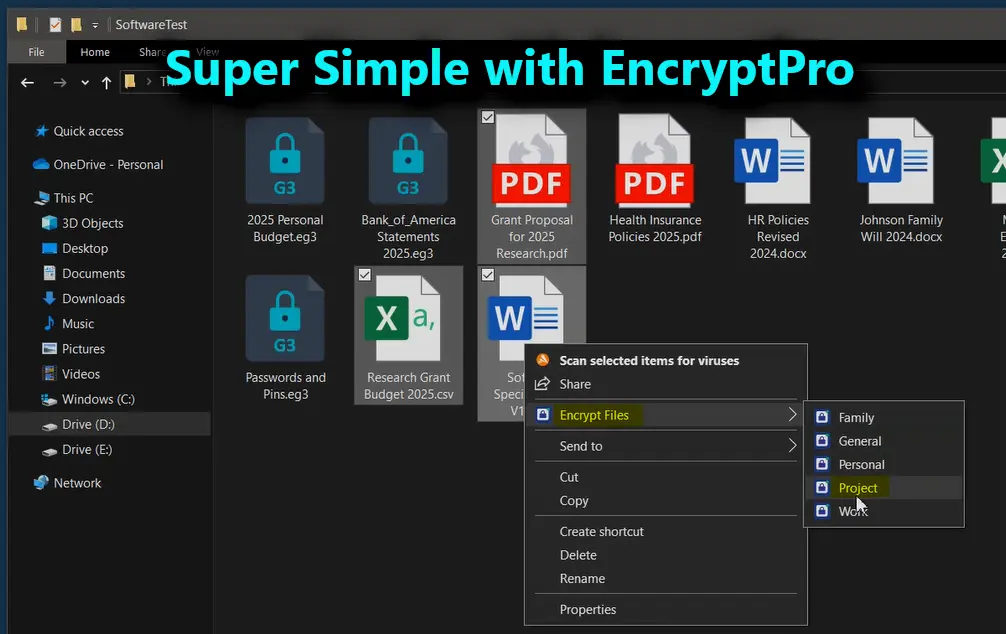
A newer generation of tools protects files in place, without containers, archives, or full-drive locks.
This category is where EncryptPro sits—and why it stands out.
Strengths
- Encrypt files where they already exist
- Open and edit encrypted files directly (on-the-fly access)
- No decrypt/edit/re-encrypt cycle
- Zero-knowledge architecture
- No cloud dependency
- Works across file types without restructuring your system
Weaknesses
- Relatively new software with security audit on the roadmap
- Requires learning basic group-based organization for best use
Hidden Cost
- Very low.
Workflow friction is nearly zero—your time stays yours.
So… Which Is the Best Encryption Approach for Different Users?
When you strip away the jargon, the menus, and the mystical aura that surrounds “proper” data protection, most people fall into one of two camps. And understanding which camp you belong to is the key to choosing the right Windows file encryption software—without overspending, overcomplicating, or accidentally locking yourself out of your own data.
1. The Everyday User Who Actually Uses Their Private Files (which is… nearly everyone)
If your encrypted files aren’t meant to be forgotten in a digital tomb—if you actually need to open them, edit them, drop new documents in, copy photos out, or weave them into your daily workflow—then file-level, on-the-fly encryption is the approach that makes the most sense.
This is where EncryptPro becomes the most suitable choice for the majority of users. It’s built for the everyday reality of data security: the fact that private information isn’t just something you hide, it’s something you use. EncryptPro keeps those files protected without forcing you into the tedious decrypt-edit-re-encrypt loop or locking your entire drive just to safeguard a handful of documents.
For anyone who wants the “always secure, always accessible” middle ground, EncryptPro is the option that checks nearly every box—granular control, minimal friction, and encryption that blends into your daily flow instead of interrupting it.
2. The Archiver: You Don’t Need the Files Daily—You Just Want Them Safe for Years
There is a second category of user: the long-term data steward. Maybe it's old tax documents, sensitive project archives, or data you'll only revisit for legal or historical reasons. In that case, you don't need constant access—you just need the contents locked away with maximum rigidity.
For those deep-freeze scenarios, a dedicated container-based system like VeraCrypt can be a solid fit. A vault encrypts everything inside it, making it ideal for long-term “cold storage” protection.
But there’s one critical caveat most users don’t hear until it’s too late:
If a VeraCrypt vault’s header becomes corrupted—even by a few bytes—the entire vault can become unreadable.
This is why seasoned security professionals keep multiple copies of their containers stored in different locations. A single vault is not a backup strategy.
Where EncryptPro Fits In — and Why It Checks All the Long-Term Boxes
Throughout this guide, you’ve seen the gaps across “free,” built-in, and legacy tools. EncryptPro’s design quietly addresses almost every real-world pain point without demanding that users reorganize their digital life.
Here’s how it aligns with the buyer’s-guide criteria—without hype, just architecture:
✓ Risk Management
- Files stay encrypted in their original locations
- Sensitive data stays protected even during everyday use
- On-The-Fly Access works for files of all types (paid plan)
- Group-level control prevents lockout chaos

✓ TCO Advantage
- No vaults
- No moving files
- No re-encrypting after edits
- Free version covers unlimited file encryption
- Paid version at $5/month remains one of the lowest total ownership costs in the category
✓ Sustainability
- Works offline
- Viewer-Only access guaranteed even if subscription ends
- Zero-knowledge keys stay on your device, not the company’s
- Long-term access preserved even after system reinstalls
✓ Data Sovereignty
- Not cloud-controlled
- Master password never transmitted
- No lock-in: your files remain yours forever
It isn’t positioned as “the best encryption software for Windows” because of marketing—it simply aligns with how people actually work on their computers.
Download the Free Forever version of EncryptPro now and encrypt your first folder in under 60 seconds. No trials, no strings—just powerful protection that actually works on your Windows 11 Home PC.
FAQs
Q1: What’s the best type of Windows file encryption software for long-term use?
If you want sustainable, low-friction windows file encryption that encrypts data in place—without vaults, archives, or full-drive limitations then EncryptPro offers the best long-term balance of control and convenience.
Q2: What’s the best way to use Windows file encryption without slowing down my workflow?
The safest approach is choosing a tool that applies strong Windows file encryption without forcing you into vaults or full-disk locks. Solutions that encrypt files in place—while still letting you open and edit them normally—offer both security and speed. This avoids the bottlenecks of container mounting or re-encrypting archives every time you update a document.
Q3: Do I need third-party software if Windows already has built-in file encryption options?
Windows provides native features like EFS and BitLocker, but many users find these limited, especially when they need file-level control or cross-device flexibility and only provides data-at-rest security. Third-party tools often deliver more practical Windows file encryption by adding granular protection, simpler workflows, and fewer restrictions tied to specific Windows editions for example EncryptPro.