

Introduction

You've probably been there: searching "how to Password Protect a Folder in Windows," scrolling through endless tutorials promising solutions, only to find methods that either don't work properly, break your workflow, or require a computer science degree to implement.
We’ve all got files we can’t afford to lose or have seen by prying eyes. That folder of tax documents, the personal photos, the sensitive project plans for your business—the thought of them falling into the wrong hands is a constant, low-grade anxiety.
Here's the problem most Windows users face: The built-in options are either too basic or non-existent. Third-party solutions often fall into one of three frustrating categories:
-
Overly complex tools that demand technical expertise and constant maintenance
-
Impractical methods that force you into clunky workflows—compressing files into password-protected archives every time you need to make an edit
-
Disruptive solutions that lock entire drives or create isolated vaults, making your files feel miles away from where you naturally work
The result? Most people either abandon the goal to Lock a Folder entirely or settle for security theater that doesn't actually keep their data safe.
What this guide offers is different.
This guide will show you the "right way"—a method that balances military-grade AES-256 security with effortless daily use. You'll discover how to Password Protect a Folder exactly where it lives, without disrupting how you work, and without needing a PhD in cybersecurity.
Let's get started.
What this guide offers is different
This guide will show you the "right way" a method that balances military-grade AES-256 security with effortless daily use. You'll discover how to protect your folders and files exactly where they live, without disrupting how you work, and without needing a PhD in cybersecurity.
Let's get started.
Why Traditional Methods Fall Short
Let’s understand why every other method has probably frustrated you.
-
Windows EFS (Encrypted File System): Buried in complex system settings, requires technical expertise, and most users abandon it before getting it to work. With this option, you cannot specifically Password Protect a Folder.
-
VeraCrypt: Forces you to mount and unmount entire virtual drives just to access a single file. Powerful, but impractical for daily use if you just want to Lock a Folder.
-
WinRAR/7-Zip password protection: Traps you in an endless extract-edit-compress cycle. Worse, these archives are vulnerable to brute-force attacks.
-
Vault-based solutions: Force you to relocate files into isolated containers, disrupting your natural folder structure and workflow.
-
BitLocker: Encrypts your entire drive but unlocks everything when you log into Windows. If malware infects your system or someone gains access while you're logged in, your "encrypted" files are completely exposed.
The core problem? Every method forces an impossible choice: strong security with unbearable friction, or convenience with questionable protection.
The result: time-consuming workflows, constant disruption, and security theater that makes you less likely to Password Protect a Folder at all.
What if military-grade encryption could work exactly the way you work—without changing your workflow, without moving your files, without the hassle?
That's what we're about to show you. But first, there's something critical we must talk about to understand effective security.
The Bigger Picture: Why Folder Locking is Just One Layer of Security
Here's what most guides won't tell you: knowing how to Lock a Folder is important, but it's not enough on its own.
Effective cybersecurity isn't built on a single tool—it's built on Layered Security (Defense in Depth). Relying solely on a folder lock or traditional antivirus is like installing a deadbolt but leaving your windows wide open. Real protection requires multiple, overlapping security layers covering different attack vectors.
Think of your digital security as a castle defense:
Companies like Heimdal Security provide the outer walls and guards—your first line of defense. Their Threat Prevention technology stops malware, ransomware, and hackers from ever reaching your device by blocking communication with malicious servers. They prevent the breach before it happens.
But what if a threat slips through? What if sophisticated malware finds a way in? What if someone gains physical access to your computer?
This is where the ability to Password Protect a Folder becomes your last line of defense—the unbreakable safe inside the castle.
Even if attackers breach the outer defenses, your sensitive files remain encrypted and useless. While Heimdal stops threats at the perimeter, folder encryption protects your tax returns, client data, personal photos, and financial records from ever being compromised.
The bottom line: Proactive threat prevention and local file encryption are complementary layers. One prevents attacks from reaching you. The other ensures that even if they do, your critical data stays locked down.
Now that you understand why it's essential to Lock a Folder—not as a replacement for other defenses, but as a critical layer in your security strategy—let's explore the right way to implement it.
What You Actually Need in a Folder Protection Solution
So, if the old methods are fraught with complexity and disruption, what should you look for? The "right" solution to Password Protect a Folder isn't about finding the most powerful tool, but the most effective one for your daily life. It should feel like a natural extension of Windows, not a separate, cumbersome application.
Here are the non-negotiable features for a modern solution to Lock a Folder:
-
Right-Click Simplicity: The ability to secure a folder should be as easy as right-clicking it. No complex menus, no technical jargon—just a straightforward "Encrypt" option.
-
No File Relocation Required: Your files and folders should stay exactly where you organized them. A proper tool protects them in place, without forcing you to move everything into a special "vault" or container.
-
Work Without Full Decryption: You should be able to open, edit, and save files without going through a manual decrypt-edit-re-encrypt cycle. The best solutions allow for seamless, on-the-fly access.
-
Military-Grade Encryption (AES-256): The underlying security must be unbreakable. AES-256 encryption is the global standard used by governments and security experts worldwide.
-
No Workflow Disruption: Security should happen in the background. It shouldn't slow you down or force you to change how you work with your documents, images, and projects.
-
Guaranteed Data Access: You should never, under any circumstance, be locked out of your own data. This means access should be available offline, if a subscription lapses, or if you need to recover files on a new device.
This isn't a wishlist; it's the baseline for a solution that respects both your security and your time.
Introducing the "Right Way": Security That Works For You, Not Against You
The core philosophy is simple: Eliminate the trade-off between security and convenience. You shouldn't have to choose.
The solution is EncryptPro—a dedicated Windows encryption tool designed specifically for modern workflows. It's built on one core promise: a simple way to Password Protect a Folder with military-grade AES-256 encryption, activated with a right-click.

Your files stay protected and accessible without containers, vaults, or constant decrypting and re-encrypting. You Lock a Folder exactly where it naturally exists—no moving, no restructuring, no disruption. Double-click an encrypted file, and it opens directly in Word, Excel, your PDF viewer, or any native application. Edit, save, and it automatically re-encrypts. You work as if the files aren't encrypted at all, but they're locked down with military-grade security.
This isn't just another encryption tool. It's encryption that adapts to how you actually work.
Let's walk through exactly how to set it up.
How to Password Protect Your Folders with EncryptPro
Step 1: Install & Set Up Your Account
-
Download and install EncryptPro from our website.
-
Open the software, enter your license key, and create your Master Password.
-
Important: Save your Master Password in a secure place. We can't recover it due to our zero-knowledge privacy.
Step 2: Right-Click & Encrypt
-
Find any folder you want to Password Protect a Folder in File Explorer.
-
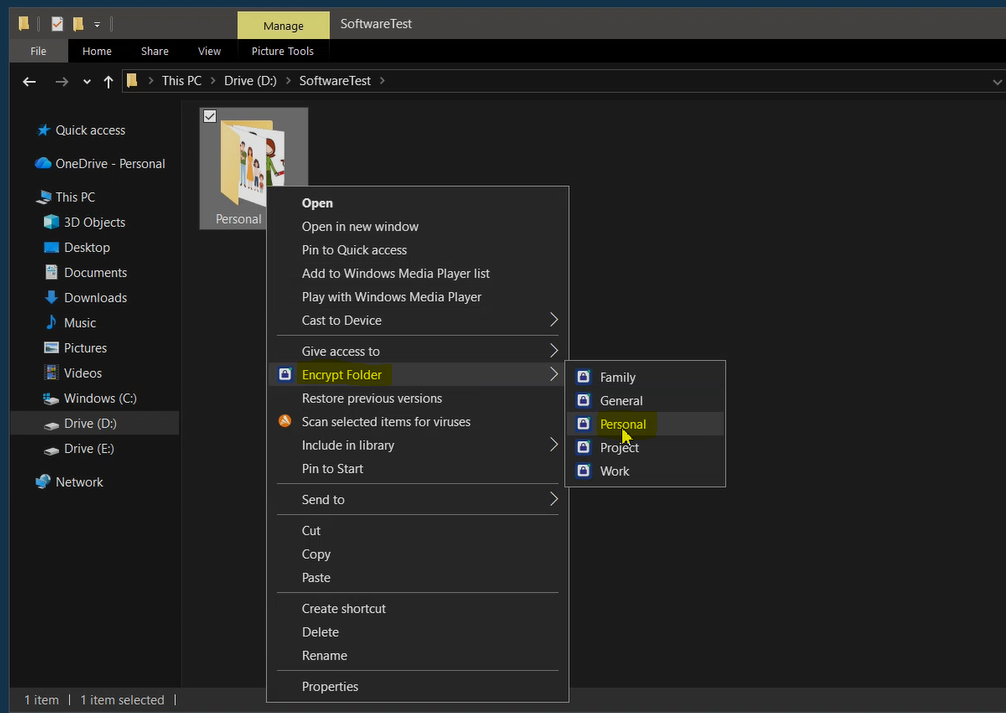
Simply right-click on it, select "Encrypt", and choose the General Group.
-
That's it! Your folder is now locked with military-grade AES-256 encryption. You'll see a lock icon confirming it's protected.
Want to see it in action? We have a full video explaining the process along with other software guides on our YouTube channel.
Working with Protected Folders: The On-The-Fly Access
So, you've learned how to Password Protect a Folder. Traditionally, this is where the hassle begins: to edit a single file, you'd have to decrypt the entire folder, make your change, save it, and then re-encrypt everything. This "decrypt-edit-re-encrypt" cycle is so disruptive that most people eventually stop using their encryption software altogether.
This is where EncryptPro's game-changing feature comes in: On-The-Fly Access. It’s what transforms a secure vault into a secure workspace and makes it practical to Lock a Folder without the friction.
How It Works (It's Magic, But It's Real):
-
Double-Click to Open: Find an encrypted file in your protected folder? Just double-click it like you normally would. EncryptPro will prompt you for the password.
-
Edit in Your Native Apps: The file opens directly in its default application—be it Microsoft Word, Excel, Adobe Photoshop, or your PDF viewer. You can view, edit, and make any changes you need.
-
Save and Walk Away: Once you're done, simply hit Save. EncryptPro instantly and automatically re-encrypts the file with your changes intact. There is no "Save As" or extra steps. You just save and close the program.
The Result: You get the full, seamless experience of working with an unencrypted file, but with the absolute certainty that it remains AES-256 encrypted at all times—both at rest and the moment you close it.
This feature alone eliminates the single biggest reason people abandon the goal to Password Protect a Folder: workflow disruption.
Conclusion: Simple, Stress-Free Security is Within Reach
As we've seen, the need to Lock a Folder doesn't have to be a choice between ironclad security and a practical workflow. The frustration of complex, disruptive methods is a problem of the past.
The right tool, built on the right principles, eliminates the security vs. convenience trade-off for good. With EncryptPro, you get military-grade encryption that works the way you do—right from your right-click menu, making it simple to Password Protect a Folder for good.
The most robust protection comes from a comprehensive, layered strategy. By combining proactive threat prevention from a leader like Heimdal Security with the effortless, powerful file encryption of EncryptPro, you build a digital fortress that is both intelligent and resilient.
Your data, always yours. Start securing it the right way today.
Ready to Get Started?
If you're looking for practical security without complexity, EncryptPro offers a Free Forever version with unlimited encryption, on-click security, and seamless file access—no subscription required, no expiration, just solid protection for your personal files.
Your data deserves protection that actually works. Grab Encrypt Pro Today and rest easy knowing your digital life is secure, accessible, and entirely under your control.