

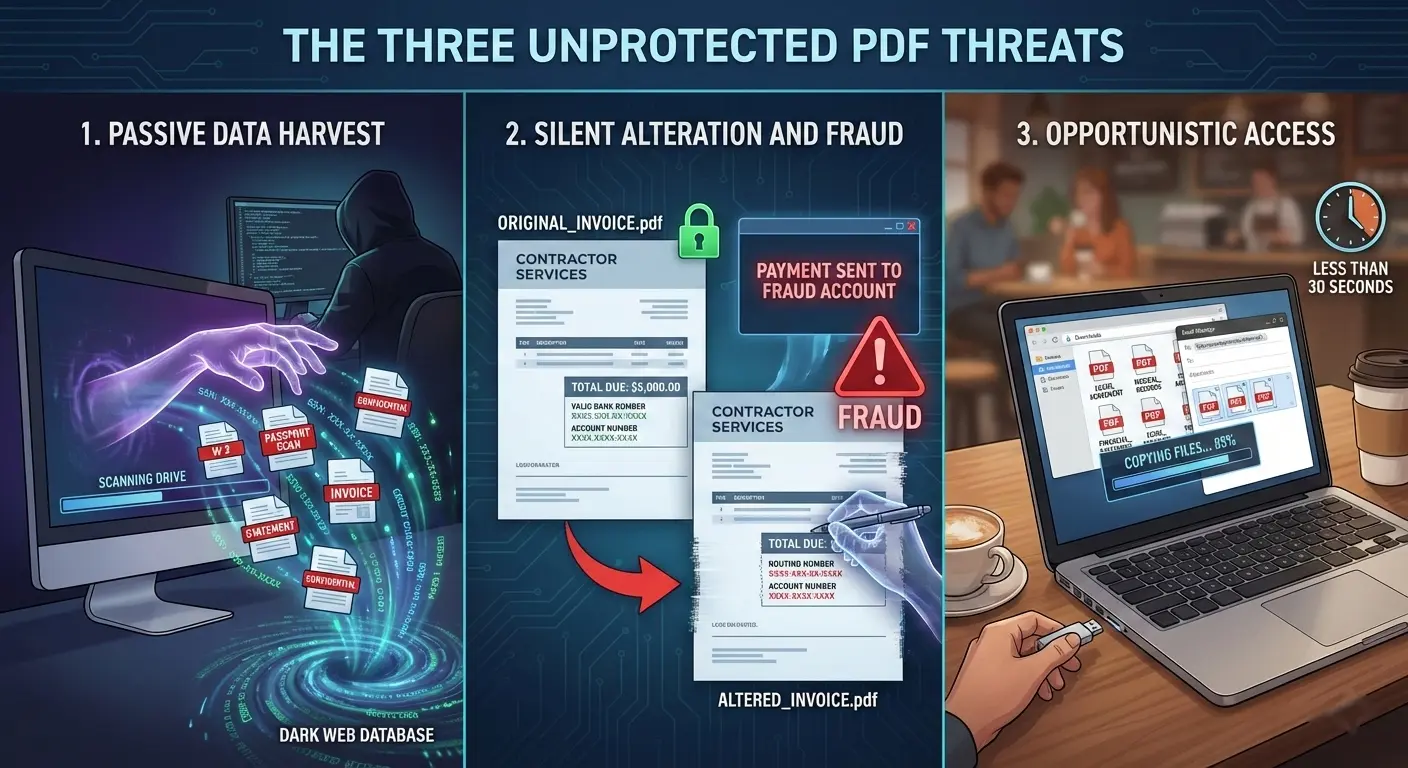
PDFs feel permanent—but they’re surprisingly fragile. From tax returns and bank statements to signed contracts, medical forms, and scanned IDs, PDF documents often contain the most critical personal information stored on a computer. Yet for many users, these files sit quietly in Downloads or Documents folders, completely unprotected, treated as “safe” simply because they look final.
That assumption no longer holds. As malware grows more targeted and physical device access becomes easier—shared households, open offices, laptops left unlocked for minutes—unencrypted PDF documents become low-hanging fruit. Worse, PDFs can be silently copied or modified, making it easy to alter invoices, contracts, or financial records without immediate detection. If you don’t actively encrypt PDF documents from editing or unauthorized access, you’re relying on luck, not security.
While modern encryption tools like EncryptPro exist to make document protection seamless—allowing you to add military-grade password security without disrupting your workflow—most people never take that essential step. The perceived complexity of traditional encryption leaves their most valuable digital assets exposed. This guide explains how to encrypt PDF document with a password, why it genuinely matters, and how to do it without slowing you down.
Before jumping into the “how,” it’s important to understand what really puts PDFs at risk.
Why Encrypting PDF Files Stored on Your System Is Critical
PDFs often serve as digital safes for your most sensitive personal information—from financial records and bank statements to scanned IDs, passports, invoices, contracts, medical forms, and legal documents. Unlike files stored in monitored cloud systems, local PDFs are rarely watched, meaning that if someone gains access to your device, those files are usually wide open for copying or manipulation.
Threat vectors that many people underestimate include physical access (like shared PCs, borrowed laptops, or a momentarily unattended workstation) and malware scanning user folders for valuable data. Information-stealing malware such as RedLine, Vidar, and Lumma now dominate the threat landscape, silently harvesting credentials and sensitive files without triggering ransomware alerts — and personal computers are often the primary targets.
Auto-synced backups compound the risk: if your plaintext PDFs are backed up automatically, they’re duplicated beyond your control and can be exfiltrated if those backup systems are compromised. PDF files are especially desirable because they concentrate critical identifiers, like Social Security or taxpayer numbers, in a portable, universally readable format — perfect for identity theft or fraud.
The consequences are real: victims of identity theft often discover unauthorized use of their personal data long after exposure, from fraudulent tax returns to compromised financial accounts.
That’s why it’s essential to encrypt PDF documents at rest using reliable file security software — to protect personal data and ensure attackers can’t read or modify your documents if they gain access.
The Silent Risk — Unauthorized Editing & Invisible Access
PDFs aren’t just read—they’re quietly modified, copied, and harvested without obvious warning signs. A single altered invoice amount, an edited contract clause, or a copied page from a financial statement can go unnoticed for months, especially when no alerts are triggered. Infostealer malware is particularly effective here, scraping PDF content or extracting data via copy-and-paste methods that leave no visible trace behind.
Many users assume that locking Windows or using a login password is enough. It isn’t. Once a session is active, your files are as exposed to malware as they are to you. These threats don’t need administrator rights; they simply access open user folders where PDFs naturally live.
This is where file-level encryption software becomes critical. By encrypting files individually, you can protect a PDF document from editing or unauthorized access, even during active sessions—adding a second, invisible security layer that works quietly in the background. Some tools like AxCrypt rely on session-based file unlocking, meaning PDFs remain accessible for the duration of an open session—an approach many users evaluate carefully in a direct AxCrypt vs EncryptPro comparison.
Why Current PDF Protection Tools Fail for Personal Storage

Most people know they should encrypt PDFs—but don't, because existing tools force an impossible choice between security and usability. Here's why traditional PDF encryption methods fail for everyday personal storage:
Adobe Acrobat's Password Protection Is a Workflow Nightmare
- Password prompt appears EVERY single time you open a PDF—impractical when accessing tax documents multiple times during filing season
- No "remember on this device" option—legitimate owners face identical friction as potential attackers
- Strong encryption requires $19.99/month Adobe Acrobat Pro subscription—expensive for basic personal file protection
- Files remain vulnerable to malware during active sessions after password entry—protection ends the moment you unlock
Free PDF Password Tools Are Too Technical for Regular Users
- Command-line interfaces (PDFtk, qpdf) intimidate anyone without technical background
- Zero visual feedback showing which stored files are encrypted vs. unencrypted in your folders
- Manual encryption required for each new PDF—no automatic protection as files arrive
- Batch encrypting document archives requires scripting knowledge most users don't possess
Archive-Based Protection (WinRAR/7-Zip) Defeats the Purpose of PDFs
- Creates .zip/.rar containers instead of accessible PDF files—defeats format's entire purpose
- Forces extract → open PDF → close → re-compress cycle for every single access
- Adds 45+ seconds of friction per document × 20 monthly accesses = 15 minutes wasted per file annually
- Easy to forget re-encryption after editing—leaves unencrypted copies scattered in temp folders indefinitely
Windows EFS (Encrypted File System) Has Fatal Flaws
- Ties encryption directly to Windows user certificate—corrupted profile or lost certificate backup means permanent data loss
- Encryption silently stripped when copying PDFs to USB drives, external storage, or network locations
- No visual indicators showing which stored PDFs are actually protected at a glance
- Provides zero defense against malware operating during active Windows sessions
Full-Disk Encryption (BitLocker) Doesn't Protect PDFs During Active Use
- Encrypts entire drive but only protects when computer is powered off—useless for daily threat scenarios
- Once logged into Windows, ALL stored PDFs become fully accessible to malware, unauthorized users, and anyone borrowing your computer
- Binary "all locked or all unlocked" approach provides false security for document-level threats
- No granular control over which files remain protected during work sessions
The Core Problem:
Traditional tools force an impossible choice—secure PDFs that are painful to use, or usable PDFs with no real protection—pushing most people to abandon encryption entirely.
How EncryptPro Encrypts PDF Files Without Breaking Your Workflow
EncryptPro was built specifically for personal data security making it our recommended best document encryption software for Windows users —protecting the PDFs stored on your computer, not for sharing files with others. It solves the workflow problem that makes traditional PDF encryption impractical for everyday use.
The workflow is simple:
- Right-click your tax return PDF → Select "Encrypt with EncryptPro" → Assign to "Financial" group
- File encrypts instantly with AES-256 encryption in its original location
- No containers, no archives, no file relocation required
Accessing encrypted PDFs is just as easy:
- Double-click the encrypted PDF → Opens directly in Adobe Reader or your default viewer
- Edit, annotate, save changes → File automatically re-encrypts when you close it
- No manual decrypt-edit-recompress cycles or extract-then-compress workflow disruption
Group-based organization matches real workflow. Create "Medical" for health records, "Legal" for contracts, "Personal-IDs" for passports. During tax season, unlock your "Financial" group once—now access all tax docs, bank statements, and investment records without password prompts for each file. Work freely across multiple documents. When you're done for the day, lock the group—those PDFs become password protected again while remaining unreadable encrypted files throughout the session, no matter locked or unlocked.
The paid version ($5/month) adds on-the-fly access for all file types and folder encryption. The free forever version handles unlimited PDF file encryption.
Important transparency: EncryptPro isn't designed for emailing encrypted PDFs to others. Recipients would need EncryptPro installed with your group password—not practical for sharing. Sharing features are on the development roadmap. For now, use free online tools like Encrypt-Online.com for one-time email transfers. Keep EncryptPro for what it excels at: protecting PDFs stored on your Windows system with encryption software that doesn't destroy your workflow.
Checkout: Full Software Tutorial Video
Advanced Personal Storage Strategy: Batch Operations & Future-Proofing
EncryptPro isn’t just for today’s PDFs—it’s designed to secure your past and protect your future. Years of old bank statements or scanned documents can be batch encrypted in minutes by right-clicking entire folders, turning legacy clutter into a protected archive instantly. Viewer Mode guarantees access under all circumstances—your files are never held hostage. This approach embodies a core security principle: true data sovereignty comes from keeping encryption local and under your full control. For more on the philosophy of eliminating cloud dependencies from your security setup, see our guide on how to encrypt files on Windows without cloud storage. Many users adopt a one-time storage mindset with EncryptPro: subscribe briefly, encrypt everything that matters, and retain permanent Viewer Mode access to your archive forever, ensuring your data remains yours alone.
FAQs
Q1: Is password-protecting same as encrypting PDF Document?
No. Many PDF “passwords” only restrict opening or editing but don’t apply strong encryption at the file-system level which is vital for actual data security.
Q2: How is EncryptPro different from just password-protecting PDFs in Adobe Acrobat?
Adobe forces password entry every time you open a PDF—impractical for tax records accessed multiple times during filing season. EncryptPro actually encrypts the contents using AES-256 Encryption and provides group-based unlocking: enter one password to unlock a group and access all financial PDFs, work on any document without repeated prompts, then lock the entire group when finished.
Q3: What if I move an encrypted PDF Document to a USB drive or another folder?
The encryption travels with the file. You can move it anywhere. To open it on another Windows PC, you'll need EncryptPro installed and your login/master password (or use Viewer Mode). The protection is attached to the file itself.
Q4: I have thousands of old PDFs. Can I encrypt them all at once?
Yes. With EncryptPro, you can right-click a parent folder containing all your PDFs (or your entire Documents library) and encrypt it. This performs batch encryption in one operation.