

That split-second panic is familiar. Your sister borrows your laptop and your “Personal” folder is sitting right there on the desktop. Or you’re sharing your screen in a Zoom call and a private document flashes by for half a second too long. These moments are why folder encryption actually matters.
And yet, you’ve probably known for months that you should encrypt that folder. The one with tax returns, passport scans, or client contracts. Every time you look to encrypt folder in windows you’re met with 14-step tutorials, command-line instructions, or warnings about permanent data loss if you lose a certificate. So you close the tab. Not because you’re careless—but because the effort feels bigger than the threat. Behavioral psychologists call this friction aversion.
Most encryption guides obsess over algorithms and features, ignoring the human reality: security gets postponed when it feels complicated. Tools like EncryptPro exist precisely to close that gap—offering real folder encryption on Windows 10 and 11 without technical rituals or workflow disruption.
In this guide, we’ll break down the four most common folder exposure moments, why people still don’t act after them, and how to encrypt folders in a way you’ll actually stick with. Let’s start with the moments that should trigger action—but usually don’t.
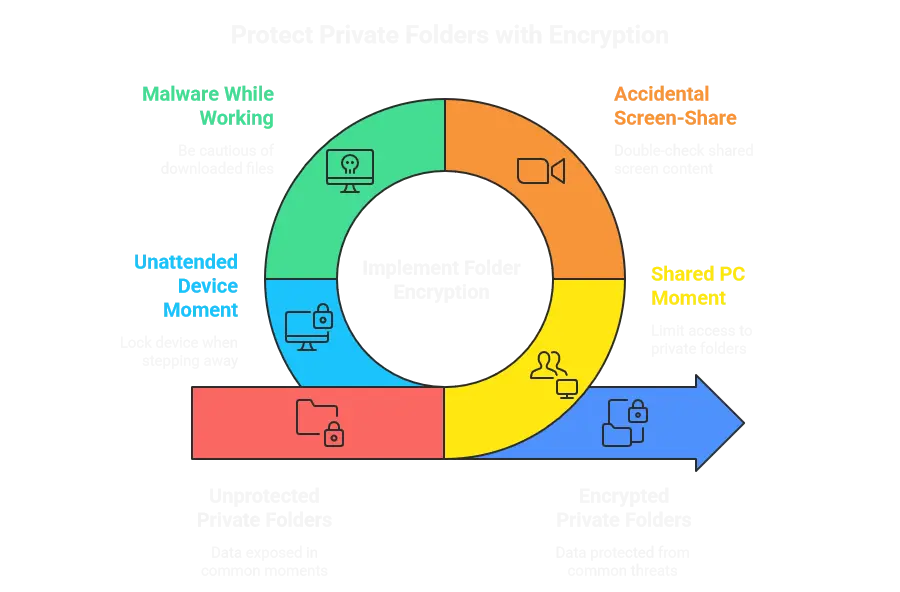
When Privacy Slips: The 4 Moments That Actually Expose Your Folders
The danger to your private folders rarely arrives as a dramatic “security incident.” It shows up quietly, in moments that feel ordinary—almost harmless.
The shared household PC moment: Your teenager borrows your laptop for a school project. Your spouse quickly checks email on your desktop. A visiting relative asks to print something. In 30 seconds, they navigate to Documents or Desktop—and there's your "2024 Tax Returns" folder, "Medical Records," or that "Personal—Private" folder sitting unprotected. You trust them completely, but there are things you'd still rather keep private. Trust doesn't encrypt data.
The accidental screen-share moment: You’re sharing your screen on a Zoom call to show a project plan. In the frantic click to share the right window, your entire desktop becomes visible. For a gut-dropping moment, the first thing 20 people see is a folder on your desktop titled 'Tax Returns' or a row of personal photo thumbnails. The damage is instant.
The malware-while-you-work moment. You download a file that looks legitimate. Modern infostealer malware doesn’t break in; it waits. While you’re logged in, it quietly reads documents sitting in accessible folders. At that point, full-disk encryption offers no protection.
The unattended device moment. You step away from your desk—at work, at home, or in a café. In that brief window, curiosity or opportunity does the rest.
These aren’t edge cases. They are frequent, common, and the primary way most private data is actually exposed. Folder encryption is the direct, precise solution to these exact, tangible moments.
Why “Just Lock the Folder” Rarely Sticks
After the panic of an exposure moment fades, something predictable happens. You think, I really need to encrypt that folder. Then you look up how to do it—and the motivation drains away.
Hidden folders, batch scripts, and NTFS permission tricks feel clever, but they fail instantly. Anyone even mildly curious can undo them in seconds. Archive-based methods that promise to lock a folder by password seem simple at first, but quickly break your flow: extract, edit, re-compress, repeat. Inevitably, people stop using them and leave files decrypted “just for now,” quietly undermining their own file security software.
The Psychology Behind the Procrastination
This isn’t laziness—it’s postponement psychology at work. The internal dialogue is familiar: I’ll do it later. It’s probably overkill. I don’t want to break anything. Once the emotional urgency fades, mental friction takes over.
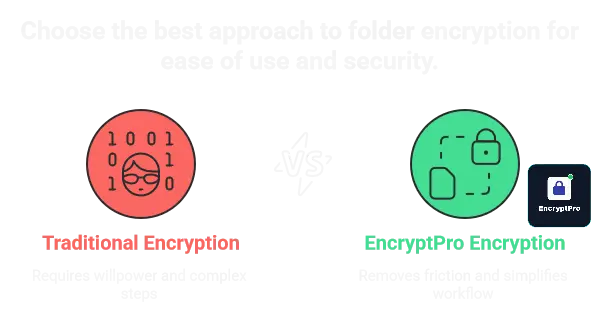
Vault-style or container-based folder encryption software for Windows makes this worse by forcing users to think about security before they can do their actual work. Container tools like VeraCrypt require mounting virtual drives, fixed-size allocation, and moving folders away from their natural locations—adding 45-50 seconds of friction every time you need to access a single file. That triggers three powerful friction points:
- Complexity friction: too many choices, too much setup.
- Workflow friction: fear that encrypting a folder will slow down daily work.
- Fear-of-lockout friction: anxiety about losing access and permanently damaging personal data.
The result is a quiet procrastination loop. The folder remains exposed. The next shared-PC or screen-share moment is inevitable. These tools don’t fail because people don’t care about privacy—they fail because they demand habit changes instead of supporting how humans naturally work.
EncryptPro’s Design Solves the Psychology Problem
Most folder encryption tools fail because they ask users to overcome friction through willpower. EncryptPro takes the opposite approach: it removes friction entirely—so protecting a folder becomes easier than ignoring the problem.
Complexity friction disappears the moment you right-click
See a sensitive folder—tax records, personal finance, client work? Right-click and choose “Encrypt & Security Group” That’s it. There are no setup rituals, no algorithm decisions, no container sizes to define. EncryptPro uses AES-256 Encryption software by default, eliminating choice paralysis at the exact moment you’re most likely to act.
Workflow friction is solved by encryption that lives where you already work
Your folders stay exactly where they are—on your Desktop, in Documents, wherever they naturally belong. They’re simply marked with a subtle lock indicator. During screen sharing, the folder stays protected. While you work, on-the-fly access takes over: double-click a file, edit it in Word, Excel, Photoshop, or your PDF viewer, and save. The file decrypts only in secure memory and automatically re-encrypts on close. No decrypt-edit-re-encrypt loop. Your workflow doesn’t change—your risk does. For a deeper comparison of encryption approaches, see our complete guide to encryption software for Windows 10 & 11.
Password fatigue is prevented with grouped security
EncryptPro lets you organize folders into logical groups—Work, Personal, Financial, Family. Instead of unlocking folders one by one, you unlock a single group and work freely inside it. When you’re done, one click locks everything again. This mirrors how people actually think about their data: by context, not by file. It also eliminates repetitive password prompts, which is one of the fastest ways users abandon encryption tools altogether.
Fear-of-lockout friction is neutralized by design
EncryptPro’s Viewer Mode guarantee means you’re never locked out. Forget a password, let a subscription lapse, lose internet access—your files remain accessible in read-only mode. This removes the single biggest psychological barrier to encrypting folders in the first place: the fear that protecting your data might destroy access to it.
Getting started takes about 60 seconds. Pick one folder—the one causing you the most anxiety. Install EncryptPro, set one master password, and encrypt the folder where it already lives. That’s it. You’ve just used an encryption tool for Windows that lets you encrypt folders with a password—without changing how you work.
Encryption stops being a task.
It becomes the default.
The 60 Seconds That End Folder Exposure
Think of one folder—the one tied to a real exposure moment. The shared family PC. The screen-share risk. The files you’d never want visible during a repair or coffee-shop break. Pick just one. Not your whole system. Not everything. One folder.
Now act while the awareness is fresh.
Download and install EncryptPro (free). No credit card. No trial pressure. The free version lets you encrypt multiple individual files immediately, so you can experience the workflow—not just read about it.
Open that folder in File Explorer. Select a few sensitive files—the ones that would cause real damage if exposed.
Right-click.
Choose “Encrypt & Security Group.”
Watch the file icons update. They’re now protected with AES-256 encryption. Open one. You’ll be prompted once. Unlock the group, edit, save, close. Everything works exactly as before—no extract-edit-relock loop, no disruption.
You’ve just secured the most exposed files inside that folder. When you’re ready to protect the entire folder with one action, upgrading unlocks full folder encryption—but by now, the friction is already gone.
This is what most encryption tools never delivered: security that fits how humans actually work.
Stop postponing.
Download EncryptPro free, encrypt the files you’ve been worrying about, and turn awareness into action—today.
Security that requires willpower fails.
Security that removes friction succeeds—by default.
FAQs
Q1: Why do most people delay encrypting folders on Windows?
Most people delay encrypting folders on Windows because traditional tools introduce mental friction—they feel complicated, disruptive to daily work, or risky if something goes wrong. When encryption looks like a multi-step technical project with the possibility of lockout or data loss, the brain postpones it indefinitely. It’s not laziness—it’s a rational response to tools that demand too much effort for a threat that feels distant.
Q2: : I've been postponing folder encryption for over a year. Why would this time be different?
Because you've been encountering encryption methods designed with a 15-45 minute learning curve—your brain correctly calculated that effort wasn't worth it "right now," so you postponed. EncryptPro's design removes the calculation entirely: right-click one folder, 15 seconds, done. There's no tutorial to watch, no container concept to understand, no certificate to back up.
Q3: My folders are already organized perfectly. Will encryption mess up my system?
This is the #1 psychological barrier—fear of destroying your current organization. EncryptPro encrypts folders exactly where they currently exist: Desktop folder stays on Desktop, Documents\ClientWork stays in Documents\ClientWork, external drive folders stay on that drive. Zero relocation required. The folder icon gains a small lock indicator, but the folder path, name, and contents location remain identical. You're not moving files into vaults or containers.
Q4: Is folder encryption still necessary if my PC has BitLocker?
Yes. BitLocker only protects your data when the device is powered off or stolen—it does nothing once you’re logged in and actively using your PC. Folder encryption secures specific files during real-world exposure moments like screen sharing, shared computers, or malware running under your user session.