

Introduction: BitLocker on Windows 11 Home
You've just set up your shiny new Windows 11 Home laptop. Concerned about protecting your sensitive files—financial documents, work presentations, family photos—you search for "BitLocker Windows 11 Home" to encrypt your drive. But instead of finding the feature, you're met with frustrating forum posts and support articles delivering the same disappointing message: BitLocker isn't available on your system.
If this sounds familiar, you're not alone. Thousands of Windows 11 Home users search for Windows11 home BitLocker, only to discover that Microsoft has reserved this powerful encryption tool exclusively for Pro and Enterprise editions. This means millions of everyday users—students, freelancers, families, and small business owners—are left without built-in full-disk encryption, leaving their devices vulnerable to data theft if lost or stolen.

But why does this matter so much, especially looking ahead?
The Unignorable Importance of Encryption in 2026 and Beyond
As we move into 2026, the digital landscape is only becoming more perilous. Encryption is no longer a niche tool for IT professionals; it's a fundamental layer of personal and organizational security. Here’s why it’s more critical than ever:
- Evolving Cyber Threats: Data breaches are increasingly common and costly. If your device is compromised, strong encryption is your last line of defense, rendering stolen data completely useless to thieves without the unique decryption key.
- Future-Proofing Against New Technologies: With the horizon bringing advancements like quantum computing, which could break older encryption methods, using modern, robust encryption software is essential to ensuring your data remains secure for years to come.
In short, in an era where our entire lives are on our devices, leaving your data unencrypted is a risk you simply cannot afford to take.
There Is a Better Solution
The good news? You don't need to upgrade to Windows 11 Pro or settle for an unprotected system. Modern encryption alternatives like EncryptPro deliver enterprise-grade protection designed specifically for everyday users—no technical expertise required, no expensive operating system upgrade necessary. In this guide, we'll explore exactly why BitLocker remains locked away from Home users, and more importantly, how you can achieve even better protection with solutions built for the way you actually use your computer in 2026.
Why BitLocker Isn't Available on Windows 11 Home
Let’s cut to the chase. The absence of BitLocker on your Windows 11 Home PC isn’t a technical oversight—it’s a deliberate business strategy. Windows 11 Pro, priced at a premium, bundles advanced features aimed at professionals and businesses, with “full-featured BitLocker drive encryption” being one of its flagship offerings, as noted by PCWorld. This creates a clear upgrade path: if you want enterprise-grade security management, you pay for the Pro license.
For the Home edition, Microsoft includes a more basic alternative called “Device Encryption.” As PCWorld explains, this is an automatic, simplified version that activates when you sign in with a Microsoft account, saving your recovery key online.
Sounds convenient, right? Except Device Encryption is limited: you must sign in with a Microsoft account, you must store your recovery key in your Microsoft account online, and you can't use it to encrypt external drives pcworld.
Feeling stuck? Microsoft has a solution: upgrade any Windows 11 Home PC to Windows 11 Pro for $99 pcworld. And here's the kicker: even after paying that premium, you're getting BitLocker's full-disk encryption approach, which locks your entire drive behind one authentication wall. It's powerful but inflexible—you can't selectively encrypt just your sensitive folders while leaving the rest of your system untouched. Providing only data-at-rest security while leaving you vulnerable to malware attacks with no data-in-use security while your drive is unlocked as you are working on your private data.
So, if BitLocker is off the table and Device Encryption is too limiting, what should you actually look for in a dedicated encryption tool for Windows 11 Home?
Key Features to Look for in Encryption Software for Windows 11 Home
Choosing the right tool means looking beyond the marketing and focusing on features that deliver real security without the friction. Here’s your essential checklist for 2026:
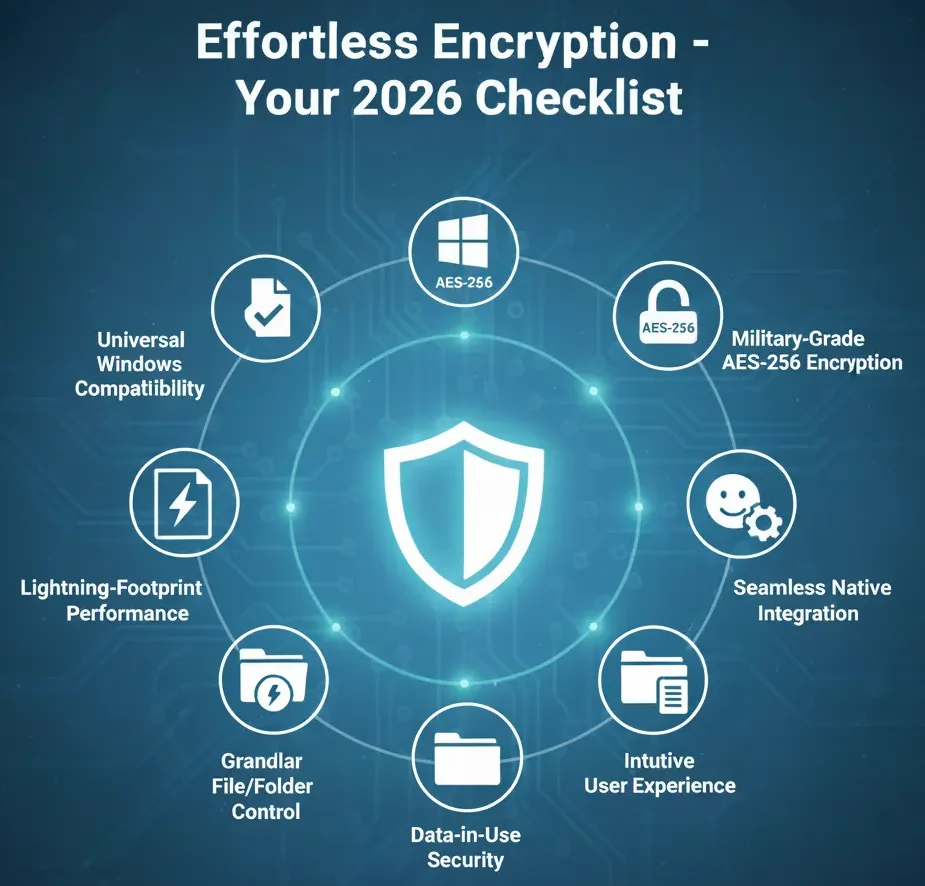
Yet, despite knowing what to look for, most people’s experience with encryption software is one of frustration and abandonment. Why does this happen? Because the majority of tools, even well-known ones, fail on these very points. Let’s examine what most encryption tools get wrong and why you've given up before.
What Most Encryption Tools Get Wrong
If you've tried encryption software before and abandoned it within a week, you're not the problem—the tools are.
While VeraCrypt is great for full drive encryption but it trap your files in isolated containers, forcing you to mount virtual drives just to access a single document. Tools like AxCrypt follow a similar session-based file encryption model, which is why many users compare them directly when looking for a practical alternative (AxCrypt vs EncryptPro comparison). WinRAR and 7-Zip turn every edit into a tedious extract-compress hassle and password management becomes a nightmare with so many archives. Most tools suffer from the "System Admin Cosplay" syndrome—designed by IT professionals for IT professionals, drowning regular users in technical jargon and cryptic settings.
Full-disk solutions like BitLocker slow your entire PC to a crawl, encrypting system files you never needed protected in the first place. And the all-or-nothing trap? You can't just encrypt your tax returns—it's your whole drive or nothing.
This is why people give up. Not because they don't care about security, but because existing tools make protection feel like punishment. What 2026 users actually need is a VeraCrypt alternative that offers surgical precision—encrypt exactly what matters, access it normally, and skip the complexity theater, as explained in our EncryptPro vs VeraCrypt comparison. File-level encryption should feel invisible, not like a part-time IT job.
The good news? Modern easy encryption software has finally caught up to what users have been begging for all along.
EncryptPro: BitLocker Alternative for Windows Home Encryption
EncryptPro. This isn't a complex workaround; it's the modern, purpose-built encryption software for Windows 11 Home that eliminates the security vs. convenience trade-off. It delivers military-grade AES-256 encryption through a seamless, right-click workflow that feels native to Windows, giving you Pro-level security without the Pro edition price tag or the usual hassle of other tools.

EncryptPro’s core genius is its simplicity. On-Click Security lets you encrypt any file or folder directly from the Windows right-click menu—no moving files to special containers or creating complex archives. Its On-The-Fly Access is revolutionary: double-click an encrypted document, spreadsheet, or photo to open and edit it in its native app (like Word or Excel). When you save, it’s automatically re-encrypted, killing the tedious decrypt-edit-re-encrypt cycle of other tools. For organization, the Groups feature lets you unlock an entire category of files (like "Work" or "Family") with one password, then lock it all down with a single click.
Whether you're a beginner securing personal photos or a professional protecting sensitive client files, EncryptPro adapts to you. Its Free Forever Version lets you get started immediately with unlimited file encryption, proving its value risk-free. For complete control, the paid plan unlocks folder encryption and full on-the-fly access for all file types. This is security designed for how you actually use your PC.
Here is the Complete Software Tutorial Video:
Why EncryptPro Beats Built-in Windows Encryption
Windows 11 Home's "Device Encryption" and even BitLocker Pro offer single-layer protection: data-at-rest security. Your files are encrypted when stored, but the moment you unlock your drive for daily work, everything becomes accessible—including to malicious programs that can simply request files and receive them automatically decrypted.
EncryptPro delivers multi-layered security that protects both data-at-rest and data-in-use. Files remain encrypted at the storage level, but when you open them for editing, they decrypt on-the-fly within secure memory space—your work happens in a protected environment, then automatically re-encrypts on save. No temporary unencrypted copies littering your system. No vulnerability windows where ransomware can grab plaintext files.
BitLocker's full-disk approach also cripples performance—encrypting your entire drive slows boot times and system responsiveness. EncryptPro's surgical file-level encryption only processes what you're actively using, leaving everything else untouched and your PC running at full speed.
Add zero-knowledge architecture (your keys never leave your device), Viewer Mode guarantees (access your data even if subscriptions expire or servers disappear), and cross-edition compatibility, and you've got security that's actually designed for real-world use.
Your Next Move: Stop Searching for BitLocker on Home Edition
Let's recap: the search for BitLocker on Windows 11 Home ends here—not because you found a workaround, but because you’ve found a better solution. EncryptPro delivers the peace of mind of enterprise-grade encryption without the Pro edition price tag or the complexity, protecting your data both at rest and in use.
Your next step is simple. Stop compromising. Experience stress-free security for yourself.
Download the Free Forever version of EncryptPro now and encrypt your first folder in under 60 seconds. No trials, no strings—just powerful protection that actually works on your Windows 11 Home PC.